Many readers have requested a tutorial about installing and using Intense Debate. So in this post I'll explain exactly what this new service has to offer, and how easily this can be installed in your Blogger powered blogs (including some troubleshooting tips to make sure everything runs smoothly!)
What Are the Main Features of Intense Debate?
Intense Debate is a fully featured commenting system which provides many more features than Blogger's standard comments, including:
- Comment form beneath posts (on the same page)
- Threaded comments, which allow commenters to reply directly to each other and be visible as a comment "heirachy"
- Comment avatars (of registered Intense Debate members)
- The ability to vote comments up/down (so the most popular comments can float to the top of the list)
- Profiles for registered members, which include links to members' blogs and social media profiles
- Widgets for top commenters and recent comments which you can add to your Blogger layout with ease
You can read about these features in full detail, or watch the two minute video of Intense Debate functionality which explains this service in a snap!
How to Install Intense Debate in your Blogger Blog
It is surprisingly easy to install Intense Debate commenting in your Blogger template! Even when I tried this method for non-standard and highly customized templates, I found this method worked just fine.
If you would like to use Intense Debate as an alternative to Blogger's commenting system, here is what you should do:
- Head over to the Intense Debate home page and add your blog's URL in the box provided. Then click on the Install Intense Debate" button:

- If your blog is hosted on Blogspot (eg: yourblog.blogspot.com), Intense Debate will automatically detect your blogging platform.
If you use a custom domain (eg: www.yourblog.com), you will need to choose Blogger as your blogging platform.
Once Intense Debate is sure of the platform you are using, you will see a screen like this:

Here you have the choice of installing Intense Debate comments as a widget (the easy method) or directly in your Blogger template, to appear below your posts (the recommended method).
If you choose to add this as a widget, simply click on this option and follow the steps to add this as a widget in your blog sidebar.
If you would prefer to use the full commenting system, continue reading instead!
- Installing the full Intense Debate commenting system really is a breeze! In this case, you will need to follow the steps provided on the installation page to make a back-up of your full Blogger template by going to Layout>Edit HTML in your Blogger dashboard, and clicking on the "Download full template" link.
This saves a copy of your existing blog template (including any widgets and customizations) to your computer.
Once you have done this, go back to the Intense Debate installation screen and click the "Browse" button to locate your template file on your computer.
- Next, you have a decision to make: you can either:
- Choose to install Intense Debate on posts where there are no existing comments
- Choose to replace all comments with Intense Debate comments instead.
If you do choose to replace all comments, these existing comments will not be lost! You can retrieve and import these to Intense Debate afterwards if you choose to do so (as shall be explained shortly).
Check the radio selection for the option you prefer, then click the "Upload file and continue" button.
- On this next screen, you will see a box filled with code. This is your Blogger template code which has been modified to include the Intense Debate commenting system.
Copy all of the code in this box to your clipboard. Then go to Layout>Edit HTML in your Blogger dashboard.
- Replace all of your existing template code with this modified code from Intense Debate.
You can check that you have installed this correctly by previewing your changes. If the installation was successful, you will receive no error notifications and can proceed to save your template.
- Finally, click on the "Finish" button right near the bottom of the Intense Debate installation page. Then visit your blog in your web browser to check out your new commenting system!
Changing the Comment Settings
Once you have installed Intense Debate comments in your Blogger blog, you may like to change some of the settings to suit your individual requirements.
To change your Intense Debate settings, you will need to access your Intense Debate dashboard and click on the "settings" link for the blog you wish to access.
Here are the different comment settings you can change to suit your needs:
- Blog Info: Here you can alter any details for your blog, such as the URL, blog title and RSS feed.
- Comment Posting: This section includes any moderation opions you may wish to alter. You can choose to moderate all comments before they appear beneath your blog posts; moderate posts containing words in a blacklist, and even automatically delete comments if they contain certain "banned" words and phrases.
- Email Notifications: Choose whether you would like an email to be sent to blog authors whenever a new comment is posted (similar to Blogger's comment settings).
- Display Settings: If you would like to enable "threads" (this allows a person to comment directly to another commenter), tick the appropriate box. You can also set the default order of comments (readers will be able to re-order this list for themselves if they choose).
- Comment Link Text: In this section you can choose to alter the text used for your comment links. By default this is set to Comments ([#]) where [#] is the number of comments. You could change this to "[#] Responses", "Observations: ([#])" or indeed any other link text which you prefer!
- Add another blog admin: This setting allows you to add new moderators who can access your Intense Debate settings, which is useful for group bloggers.
Changing the Appearance of your Intense Debate Comments
When you first install Intense Debate comments, you will notice the color scheme and fonts match those already present in your template! This is lucky since Intense Debate do not recommend that you alter the CSS for your comments (this is still in beta, the code used may alter and render such changes invalid).
There are however a few changes you can make from within your Intense Debate dashboard. To access these layout settings, go to your Intense Debate dashboard and click on the "Layout" link for the blog layout you wish to alter.
From this page, you will be able to alter the following settings:
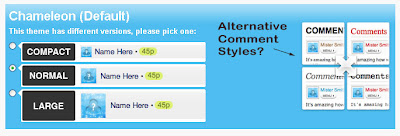
- Comment Size: This setting means you can alter the avatar and font size for each comment as "compact", "normal" or "large".
- Button Style: This affects how links to "post a comment", "post-reply" and "submit" are displayed in your comment section. Choose from either a button or text link style (which appear like normal links in your posts)
- Comment Layout: This option enables you to change how comments appear beneath your posts. The default setting is for comments to be permanantly displayed beneath each post. Alternatives include "peekaboo comments" (activated by clicking on the comment link), and comments in a pop-up page.
Most bloggers choose the default (comments already present beneath posts) setting, which is also my personal preference as clicking on a link adds another step for readers and offers less incentive for actually leaving a comment on your posts.
One thing you may notice on the layout page is that "Chameleon" is the only choice of style for your Intense Debate comments, though there is an image which suggests other styles may become available soon:
Import Existing Comments from Blogger
If you choose to install Intense Debate for all your existing blog posts (including those posts which already have comments) you may prefer to import any existing comments from Blogger to be displayed alongside your new Intense Debate comments.
Importing your old comments is very easy. Simply go to your Intense Debate dashboard and click on "Overview" for the blog whose comments you wish to import.
Next click on the "Blog Tools", then on the "Import Comments" link in the left hand column.
On this page, you will be prompted to log in to your Blogger account, which will allow Intense Debate to access the API for importing your comments. Once logged in, you will be able to choose which blog you wish to import from and to (be sure to import/export comments from the same blog, otherwise Intense Debate will not be able to allocate them to the correct posts!).
When you choose to import these comments from Blogger, the existing comments will not be deleted! If you decide to uninstall Intense Debate for any reason, you can export all your Intense Debate comments to an XML file, and restore the view of your existing Blogger comments.
I'm not sure that it's possible to export Intense Debate comments back to Blogger at this time as Blogger's API does not allow comments to be automatically created using such third party software (though I strongly suspect it may be possible for respected services like Intense Debate to do this in the future).
Manage your Intense Debate Profile
One of the more useful functions of Intense Debate is profiling. By using your Intense Debate profile to leave comments on ID-enabled blogs, you can increase your reputation, link to your other social networking profiles, add an avatar and monitor comments left on all blogs you visit!
Readers can vote comments up or down (depending on their perceived value to the conversation). Comments which are voted up increase that commenters reputation (whilst the reverse also applies too).
Troubleshooting Intense Debate Installations
From my experiences is using Intense Debate so far, I am happy to say that there are very few possible problems which could occur.
While testing Intense Debate installation with both default and heavily customized (third party) Blogger templates, I have only found two possible problems which may occur during installation: imported comments may not appear as soon as they are imported, and the comment count on heavily customized templates may not appear.
Both of these can usually be resolved easily using the following methods:
Imported comments do not appear
First of all, check the comments in your Intense Debate dashboard to ensure these do appear for the appropriate blog (if not, you should attempt to import them again).
If the imported comments are present, chances are that Intense Debate has not caught up with these comments yet. Be patient, and soon enough you should notice these comments appear in the Intense Debate comment area beneath your posts.
If after a day or so the imported comments do not appear, you should ask for help in the forum. This forum is watched by members of the Intense Debate team who seem very helpful and will be able to help you resolve this problem quickly.
The comment count does not update
I've only ever noticed this problem occur in heavily customized templates where the comment count appears near the top of each post, rather than in the post-footer section.
I suspect this problem may occur because the comment-link tags is separated from other elements of the comments section, and is not parsed correctly by Intense Debates (otherwise flawless) installation system.
The fix for this problem is a little more complicated, but not too difficult.
Depending on whether you have chosen to replace all comments with Intense Debate, or only the posts which do not already have comments, you should use one of the following methods to solve this:
- If you have chosen to replace only posts which don't already have comments:
Firstly, backup your existing template code (to ensure you can restore your template if thhere are any problems).
Find this section of code in your Blogger template:
<a class='comment-link' expr:href='data:post.addCommentUrl' expr:onclick='data:post.addCommentOnclick'><data:top.commentLabel/> <b:if cond='data:post.numComments == 1'>(1) <b:else/>(<data:post.numComments/>) </b:if></a>
Check that this section of code is not surrounded by Intense Debate HTML comments, which appear like this:
<!-- Intense Debate -->
<!-- /Intense Debate -->
If these comments do not appear around this section of code, replace the code with the following instead:
<!--Intense Debate-->
<b:if cond='data:post.numComments == 0'>
<div expr:id='"IDCommentPostInfoTitle"+data:post.id' style='display:none'><data:post.title/></div>
<div style='display:none' expr:id='"IDCommentPostInfoTime"+data:post.id'><data:post.timestampISO8601/></div><div style='display:none' expr:id='"IDCommentPostInfoAuthor"+data:post.id'><data:post.author/></div><div style='display:none' expr:id='"IDCommentPostInfoCats"+data:post.id'><b:if cond='data:post.labels'><b:loop values='data:post.labels' var='label'><data:label.name/>|</b:loop></b:if></div> <a expr:href="data:post.url" expr:name="data:post.id" class="IDCommentsReplace">Comments</a>
<b:else/>
<!--/Intense Debate-->
<a class='comment-link' expr:href='data:post.addCommentUrl' expr:onclick='data:post.addCommentOnclick'><b:if cond='data:post.numComments == 1'>1 <data:top.commentLabel/><b:else/><data:post.numComments/> <data:top.commentLabelPlural/></b:if></a>
<!--Intense Debate-->
</b:if>
<!--/Intense Debate-->
Finally, save your template. If this was successful, you should see the comment count appear on your posts which relates to the true number of comments (whether Intense Debate or Blogger generated comments).
- If you have chosen to replace all comments with Intense Debate:
Again, backup your existing template to restore if there are problems using this method.
Find the following section of code in your template and ensure it is not surrounded by the Intense Debate HTML comments:
<a class='comment-link' expr:href='data:post.addCommentUrl' expr:onclick='data:post.addCommentOnclick'><data:top.commentLabel/> <b:if cond='data:post.numComments == 1'>(1) <b:else/>(<data:post.numComments/>) </b:if></a>
Providing this section is not surrounded by the Intense Debate HTML comments, replace this section with the following code:
<!--Intense Debate-->
<div expr:id='"IDCommentPostInfoTitle"+data:post.id' style='display:none'><data:post.title/></div>
<div expr:id='"IDCommentPostInfoTime"+data:post.id' style='display:none'><data:post.timestampISO8601/></div><div expr:id='"IDCommentPostInfoAuthor"+data:post.id' style='display:none'><data:post.author/></div><div expr:id='"IDCommentPostInfoCats"+data:post.id' style='display:none'><b:if cond='data:post.labels'><b:loop values='data:post.labels' var='label'><data:label.name/>|</b:loop></b:if></div><a class='IDCommentsReplace' expr:href='data:post.url' expr:name='data:post.id'>Comments</a>
<!--/Intense Debate-->
<!--Intense Debate-PRE ID <a class='comment-link' expr:href='data:post.addCommentUrl' expr:onclick='data:post.addCommentOnclick'><data:top.commentLabel/> <b:if cond='data:post.numComments == 1'>(1) <b:else/>(<data:post.numComments/>) </b:if></a> -->
Then save your template and check to make sure the comment count appears in your blog posts.
If you are still experiencing problems with your Intense Debate comments, the best advice I can offer is to visit the forums where members of the Intense Debate team will be on hand to assist you with your problems.
Over to you!
Do you already use Intense Debate? Or are you considering using this free service as an alternative to Blogger's default commenting system?
If so, please let us know your own opinions of Intense Debate comments by leaving your comments below.
 I've always been partial to a freebie, so when I heard about Entrecard and the possibility of earning free advertising by using the Entrecard widget, I couldn't wait to see how this would work out.


